1
Describe an Object or Upload an Image
Enter a clear description of one object, or switch to image mode and upload a supported reference under 5 MB.
Describe an object or upload a reference image, then create a previewable 3D asset in your preferred format.
Creation Mode
Enter a description to generate a 3D model.
0/3000
Try a Visual Example
This generation uses 3 credits.
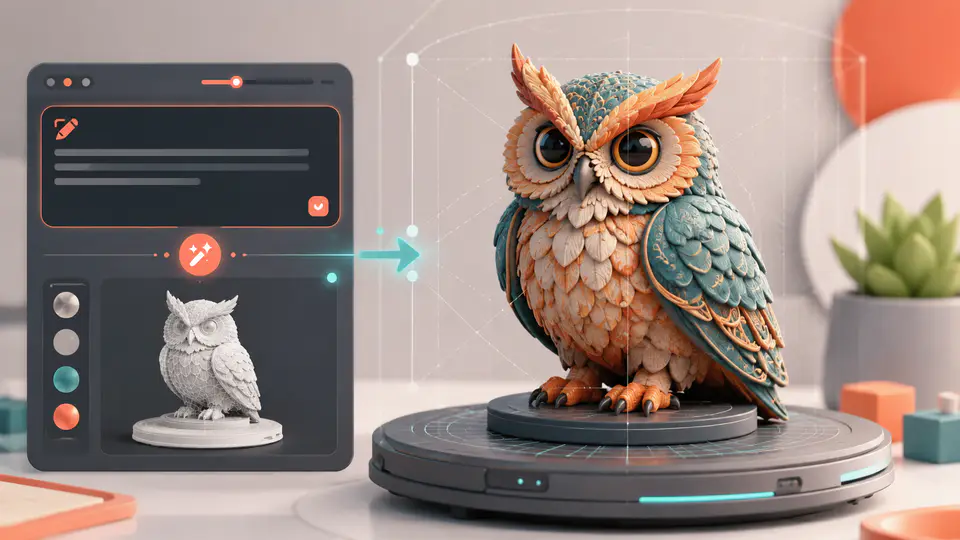
Move from an idea or reference image to a practical model file without switching between separate tools.
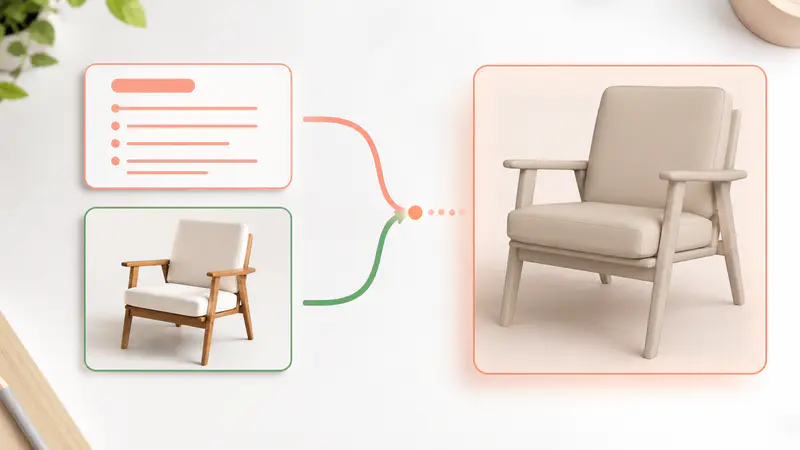
Choose the input that best captures your idea. Write a direct object description for text-to-3D generation, or upload a clean JPG, PNG, or WebP reference when shape, proportions, and visual details are easier to communicate visually.

Select OBJ, GLB, STL, USDZ, or FBX for downstream 3D work, or choose MP4 for a ready-to-view rotation. The generated model and its preview stay together, so you can inspect the result before downloading the format you need.

Review the generated preview as soon as processing finishes, open the model in a shareable 3D viewer, copy its link, or download the original model file. A clear result workspace keeps inspection and handoff close to generation.

From rapid prototypes to classroom prints, each workflow starts with a clear concept and ends with a usable model file.
I use text mode to block out props before committing modeling time. Being able to export a GLB and review the shape in a shared viewer makes early game prototypes much faster to discuss.

Elara Quinn
Indie Game Prototyper
Image mode gives me a useful first pass when a product sketch already defines the silhouette. I can compare the preview, download an OBJ, and decide exactly where manual refinement should begin.

Tomas Vela
Product Visualization Designer
My students can move from a simple object idea to an STL they can inspect before printing. The format choice makes it easier to explain why a preview and a fabrication file serve different purposes.

Nia Okafor
3D Printing Educator
Create a model in three focused steps, from the first description or image to the final download.
Enter a clear description of one object, or switch to image mode and upload a supported reference under 5 MB.
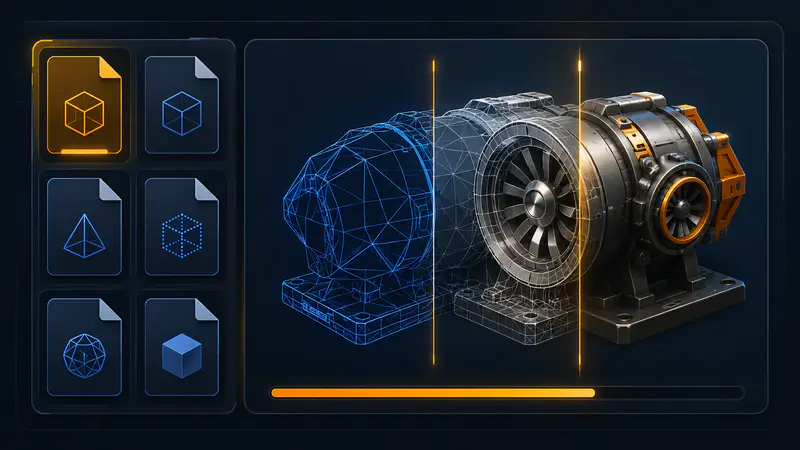
Select OBJ, GLB, STL, USDZ, FBX, or MP4, then start generation and keep the progress panel open while the model is built.
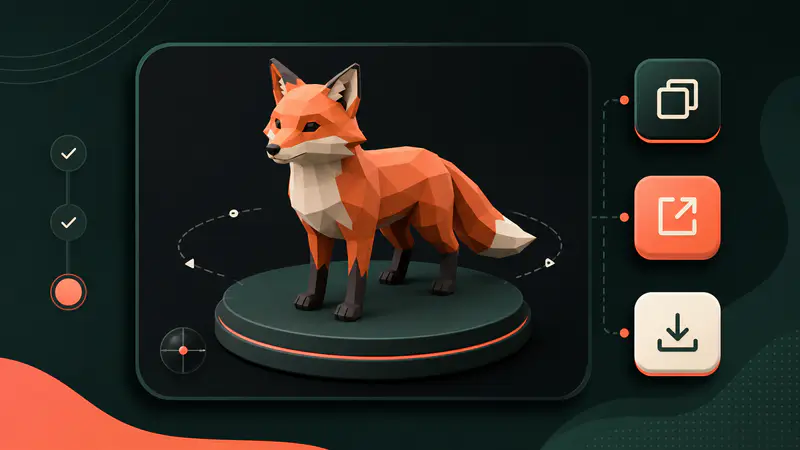
Check the preview, open the shareable 3D viewer, copy its link, or download the generated model in the selected format.
Can't find the answer you're looking for? Contact our support team
It creates a 3D asset from a text description or reference image. You also receive a visual preview for checking the generated result before download.
You can choose OBJ, GLB, STL, USDZ, FBX, or MP4. Pick a model format for editing or printing, and MP4 for a rotating visual preview.
The result is best treated as a generated starting asset. Inspect topology, scale, materials, and printability in your target software before final production use.
A clear image with one visible object works best. Use a supported JPG, JPEG, PNG, or WebP file between 128 and 5000 pixels per side and under 5 MB.
Yes, every successful result includes a shareable viewer link. You can copy the link, open it in a new tab, or download the original model file.
Keep exploring
Related Imgkits tools selected for the task you are working on.