Archive and Documentary Footage
Upscale interviews, family recordings, and archive clips before editing, or use Colorize for short black-and-white sequences that need a more contemporary presentation.
Upload a video to improve resolution and detail, adjust output bitrate, resize the frame, or restore color to older footage.
Choose a compatible video to unlock the selected processing workflow.
Default: 10 Mbps. Allowed range: 5-50 Mbps.
This run uses 5 credits. You have 0 remaining.
Avoid uploading private or sensitive videos.
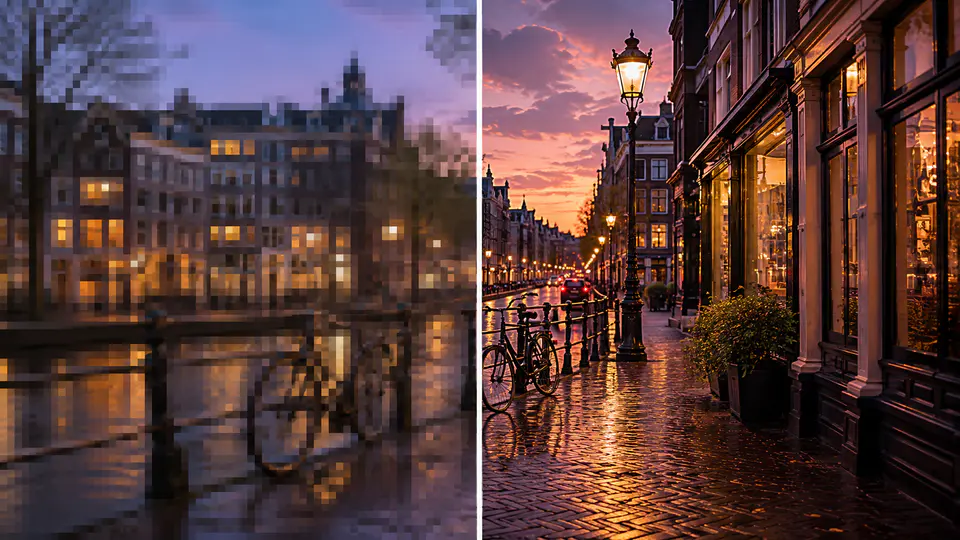
Start with AI upscaling, or switch to the source Video Optimizer workflows when a clip needs a different kind of correction.
Send eligible footage through the AI super-resolution workflow and set the output bitrate from 5 to 50 Mbps. Inputs can range from 360 x 360 through 1920 x 1080 pixels, helping you balance visible clarity, motion detail, and output size.

Prepare video for 16:9, 9:16, 4:5, 4:3, or 1:1 layouts, or enter custom dimensions from 32 to 2160 pixels. Smart, Fit, and Fill crop strategies let you use a blurred image, solid color, or stretched background when the aspect ratio changes.

Colorize mode uses a DeOldify-based prediction workflow with an adjustable render factor from 10 to 50. Lower values favor speed and vivid color, while higher values can suit cleaner source footage where detail matters more.

Use the focused modes to prepare footage for editing, publishing, and restoration without rebuilding the job in separate tools.
Upscale interviews, family recordings, and archive clips before editing, or use Colorize for short black-and-white sequences that need a more contemporary presentation.
Resize a source clip for vertical, square, or landscape publishing, then choose how the original frame should fit inside the new aspect ratio.
Improve soft exports, tune bitrate for a new delivery target, and create a cleaner downloadable result for presentations, campaigns, or another edit.
Editors and creators use the three modes to solve the specific quality or framing issue in front of them.
The upscaling workflow improves soft footage, while bitrate control gives me a useful final quality lever before I move into the edit.

Leona Mercer
Independent Video Editor
I can resize one landscape source for vertical and square posts without moving between separate export tools for every channel.

Mateo Kline
Social Content Producer
Colorize mode gives me a focused way to test short archive clips, review the result, and download the version that works for the story.

Priya Solberg
Archive Media Researcher
Upscale, resize, or colorize compatible footage in three direct steps.
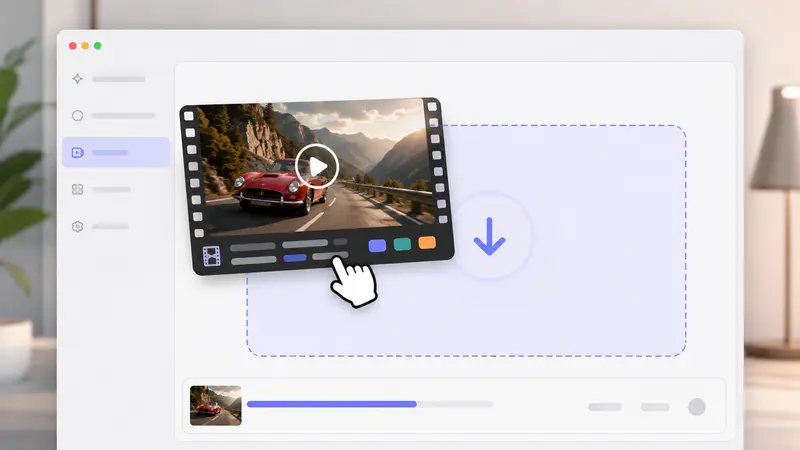
Choose an MP4, MOV, or AVI file. The form reads its duration and dimensions, then checks the active mode's upload limits before processing.
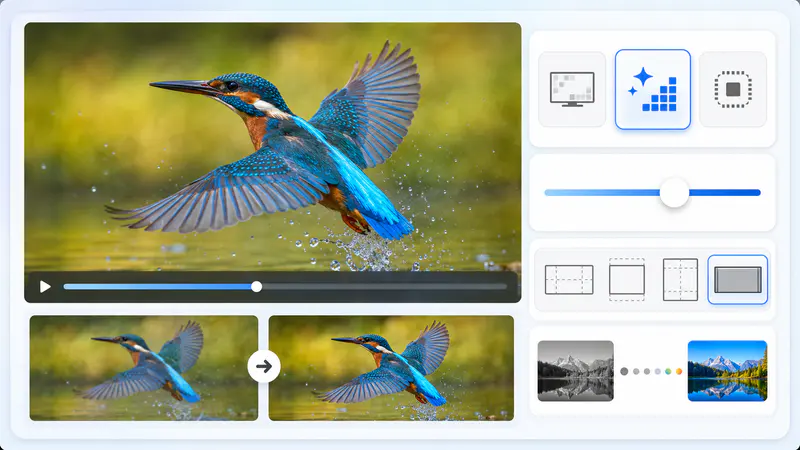
Select Upscale for higher-resolution processing and bitrate control, Resize for frame settings, or Colorize for an adjustable restoration pass.
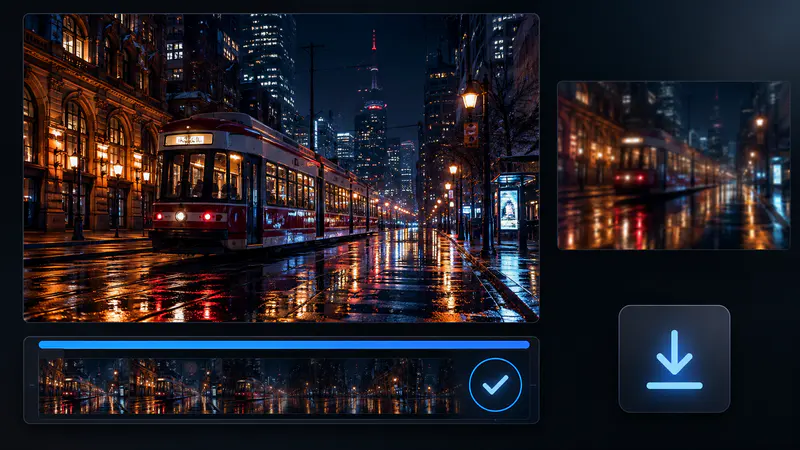
Start the job, follow its processing status, play the completed video in the result area, and download the optimized file.
Can't find the answer you're looking for? Contact our support team
The default Upscale mode sends eligible footage through an AI super-resolution workflow with adjustable output bitrate. The same Video Optimizer also includes Resize and Colorize modes.
Results depend on the source footage. AI upscaling can improve perceived clarity and output resolution, but it cannot recreate every detail that was absent from the original recording.
Upscale accepts MP4, MOV, and AVI files up to 50 MB and 30 minutes. Input dimensions must be at least 360 x 360 pixels and no larger than 1920 x 1080 pixels.
Resize supports preset and custom output dimensions from 32 to 2160 pixels. Choose Smart, Fit, or Fill framing, then select an image, color, or stretched background when Smart fill is active.
Bitrate influences how much data is used to encode each second of the upscaled video. The available 5-50 Mbps range lets you balance output quality and file size for the next stage of your workflow.
Colorize accepts MP4, MOV, and AVI clips up to 20 MB and one minute. Its render factor ranges from 10 to 50, with lower values favoring speed and vivid color and higher values favoring detail in stronger source footage.
Keep exploring
Related Imgkits tools selected for the task you are working on.