AI Image Editor for Prompt-Based Photo Editing
Edit an image with written instructions
Upload a photo and describe the change you want. Imgkits uses the image and your prompt to generate a new edited version.
Drag an image here or click to upload
JPG, PNG, or WebP
A source image for each edit
Sign in to upload, then continue to the browser-based editor to generate the requested change.
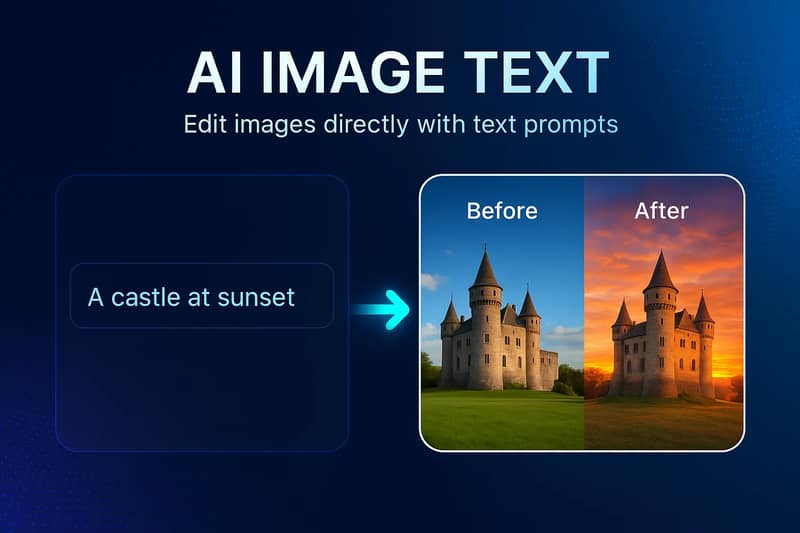
Edit Photos with Written Instructions
Use a prompt to describe the change you want the AI to generate.
Prompt-Based Image Editing
Describe a specific change in plain language, such as replacing a background, changing the mood, adding an element, or restyling the scene. The model uses your image and prompt together to create a new result.

A Source Image, Many Edit Directions
Use the same workflow for visual transformations, color and lighting directions, background changes, or creative additions. Generated details can vary, so a clearer prompt or another run may produce a better fit.

Browser-Based AI Editing
Upload an image, enter a prompt with a 500-character limit, and continue to the Imgkits web editor. No desktop photo-editing software is required.

A Clear Workflow for AI Image Editing
Turn a written instruction into a generated photo edit without navigating a traditional layer-based editor.
Natural-Language Prompts
Write the requested change as a direct instruction and include the subject, location, style, color, or lighting details that matter.
Broad Creative Changes
Explore edits that range from a different background or color mood to added objects and new visual styles.

Prompt Length: Up to 500
Use enough space to make the instruction specific while keeping the request focused on a clear visual outcome.

Online Editing Workflow
Start from the landing page and continue in the browser-based editor without installing desktop software.
How to Edit an Image with an AI Prompt
Upload an image, describe a specific visual change, and review the generated result in the Imgkits editor.
Open the AI Image EditorUpload an Image
Choose a JPG, PNG, or WebP image from your device and wait for the upload to finish.
Describe the Edit
Write a focused prompt that explains what to add, remove, replace, restyle, or adjust in the image.
Generate and Review
Continue to the editor, generate the change, and inspect the result before downloading or trying another prompt.
Prompt edits change the photo in place. When the next step is a black-and-white template, open the stencil maker from photo.
Frequently Asked Questions
Can't find the answer you're looking for? Contact our support team
It uses an uploaded image and a written prompt to generate a new edit. You can request background changes, style transformations, color or lighting directions, and additions or replacements.
Use a clear action verb, name the subject or area, and describe the intended result. Add constraints such as ‘keep the product unchanged’ when an element should be preserved.
The landing page supports JPG, PNG, and WebP images. It accepts a source image for each prompt-based editing workflow.
New accounts can use available trial credits. Continued usage depends on the credits or subscription options shown in your account.
No. The upload, prompt, generation, and result workflow is available through the Imgkits web editor.
No. The model interprets both the image and prompt, so details can vary. Specific instructions and a focused request usually make the result easier to evaluate.
Upload an image and write a direct instruction that names the subject and the change you want. For example: ‘Replace the wall behind the chair with a warm brick wall while keeping the chair unchanged.’
The AI Image Editor handles broad prompt-based transformations. The Object Remover is a focused masking tool for erasing a selected person, object, text, or distraction.
Make the instruction more specific, simplify competing requests, or try another generation. AI-generated results can vary between runs.