1
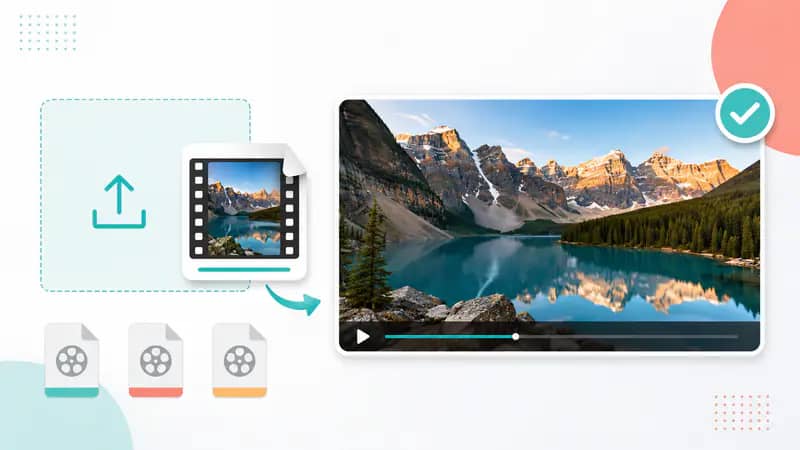
Upload Your Video
Choose an MP4, MOV, or AVI file that fits the size, duration, and resolution limits shown for the selected mode.
Upload a video to upscale resolution, refine bitrate, or restore natural-looking color in one focused enhancer workflow.
Default: 10 Mbps. Allowed range: 5-50 Mbps.
This run uses 5 credits. You have 0 remaining.
Avoid uploading private or sensitive videos.
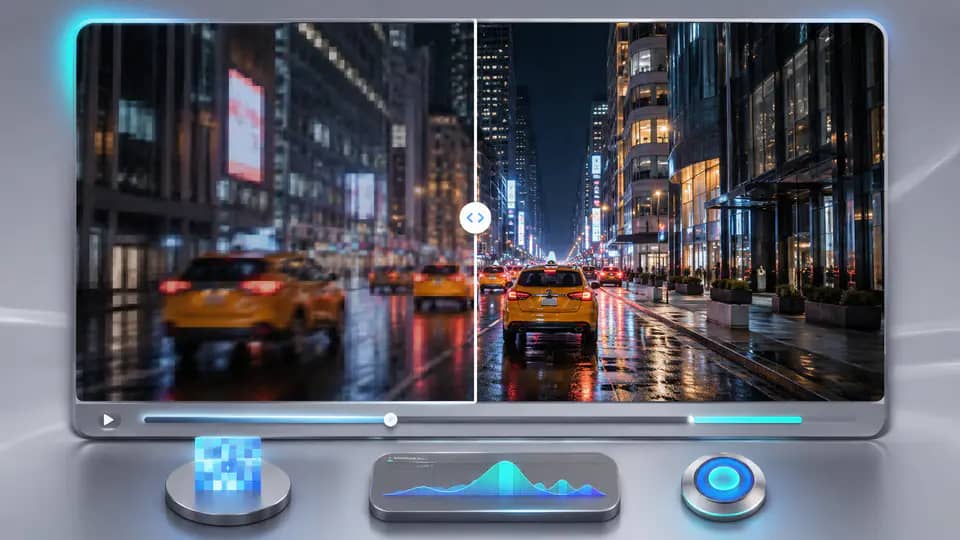
Choose the workflow that matches your source clip, then tune the key output setting before processing.
The AI video upscaler processes eligible footage between 360 x 360 and 1920 x 1080 pixels. Set a 5-50 Mbps output bitrate to balance visible detail, motion quality, and file size for your next edit.

Colorize mode applies a DeOldify-based workflow to black-and-white or faded footage. Adjust the render factor from 10 to 50 for a faster, more vivid pass or a more detail-focused result.

Review the uploaded clip, follow live processing status, play the finished video in the result frame, and download the enhanced file without leaving the page or rebuilding your settings.

Editors and creators use the focused modes to prepare soft footage and older clips for modern publishing workflows.
The bitrate control gives me a practical way to improve soft interview footage before I move into the final edit.

Maya Patel
Documentary Editor
I restored color to several short archive clips and could review each result immediately before downloading the version I needed.

Jonas Reed
Archive Producer
The upload checks catch unsuitable files early, and the finished video is ready to preview in the same browser window.

Elena Kovacs
Social Video Creator
Enhance or colorize a compatible video in three direct steps.
Choose an MP4, MOV, or AVI file that fits the size, duration, and resolution limits shown for the selected mode.
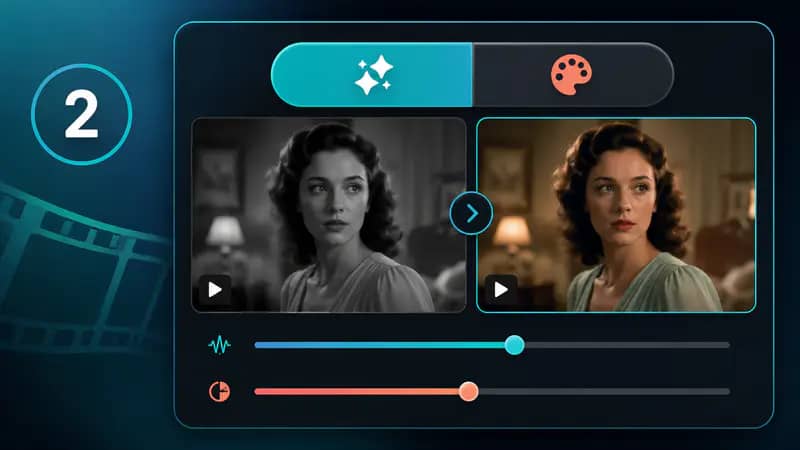
Select Upscale and set the bitrate, or choose Colorize and adjust the render factor for your source footage.
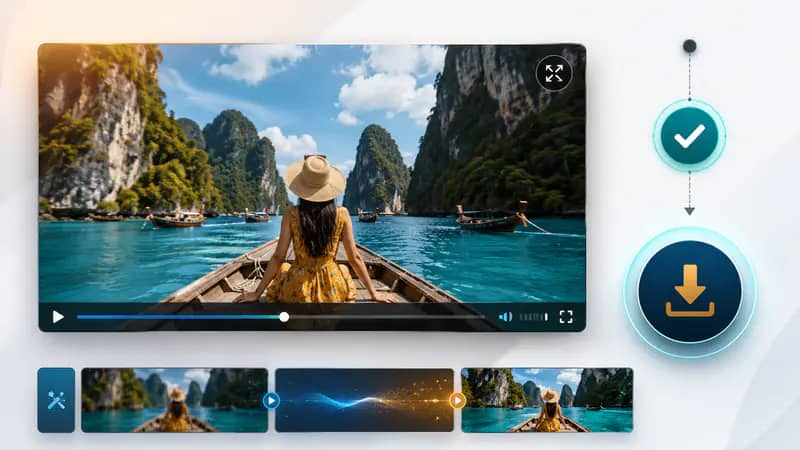
Wait for processing to finish, play the enhanced result, open the larger preview, and download the completed video.
Can't find the answer you're looking for? Contact our support team
The AI Video Enhancer can upscale eligible low-resolution footage or add color to older black-and-white clips. Choose the mode that matches the improvement your video needs.
No enhancement can recreate every missing detail. The upscaler is designed to improve perceived clarity and output quality, while results still depend on the source footage.
The tool accepts MP4, MOV, and AVI files. Upscale mode allows up to 50 MB and 30 minutes, while Colorize mode allows up to 20 MB and 1 minute.
Upscale inputs must be at least 360 x 360 pixels and no larger than 1920 x 1080 pixels. The form checks these limits before processing starts.
Lower values process faster and often produce more vivid color. Higher values favor detail in higher-quality footage, so test the setting that best suits your clip.
Keep exploring
Related Imgkits tools selected for the task you are working on.