Process and Decision Mapping
Turn SOPs, approval paths, customer journeys, and troubleshooting logic into flowcharts that make each decision and outcome easy to follow.
Describe a process, system, project, or dataset and turn it into a polished Mermaid diagram. Choose a diagram type yourself, let AI detect the best format, or upload a supporting document for more context.
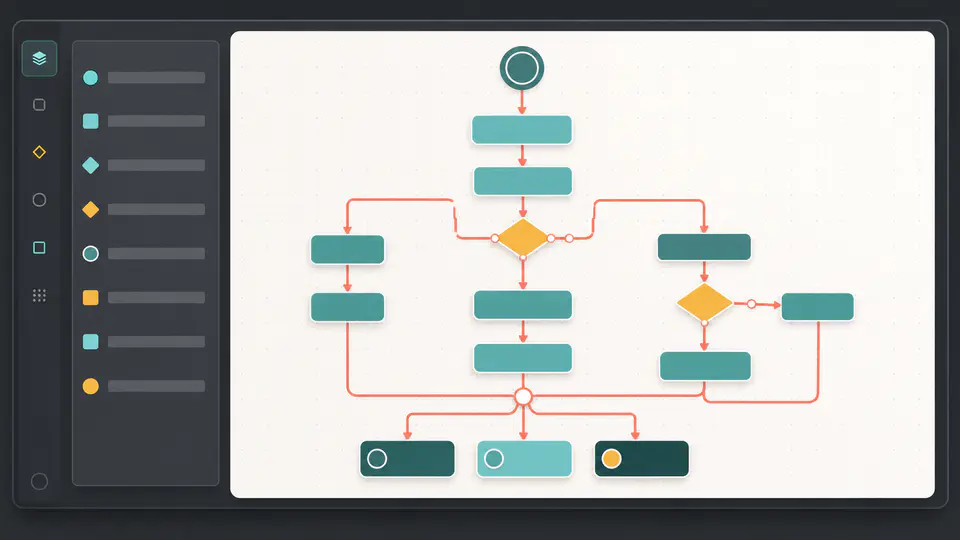
Move from an unstructured explanation to a diagram you can inspect, share, and download without drawing every node by hand.
Write a plain-language description of a workflow, system, relationship, timeline, or dataset. The generator organizes your information into valid Mermaid syntax with readable labels, existing-node references, and a layout suited to the content.

Create flowcharts, sequence diagrams, class diagrams, pie charts, journey maps, Gantt charts, and entity relationship diagrams. Auto detect can select the most appropriate format when you do not want to decide first.

Every response is cleaned, parsed, and rendered before it is shown. Zoom and pan through dense diagrams in the result workspace, open a larger view, then export a high-resolution JPEG with a white background.

Practical Use Cases
Use the format that communicates your idea best, from operational decisions to software interactions and project milestones.
Turn SOPs, approval paths, customer journeys, and troubleshooting logic into flowcharts that make each decision and outcome easy to follow.
Explain service interactions with sequence diagrams, model object structures with class diagrams, or document database relationships with ER diagrams.
Map tasks, dependencies, and dates in a Gantt chart, or visualize stages, actors, and satisfaction scores in a journey diagram.
Convert simple category values into pie charts and use concise diagrams to make reports, workshops, and planning conversations easier to understand.
Fictional examples of common diagramming workflows.

I pasted a complicated handoff process, selected flowchart, and got a structure our operations team could review immediately. The decision branches were much easier to discuss than the original wall of text.
Jonas Berg
Operations Strategist

The sequence and ER modes help me turn architecture notes into visuals before a design review. Being able to zoom around a dense result is especially useful when several services are involved.
Elena Torres
Solutions Architect

I uploaded a planning document and generated a Gantt chart for a kickoff meeting. It gave the team a concrete timeline to correct instead of asking everyone to interpret the same notes differently.
Dorian Wells
Product Manager
Create a validated Mermaid diagram in three focused steps.
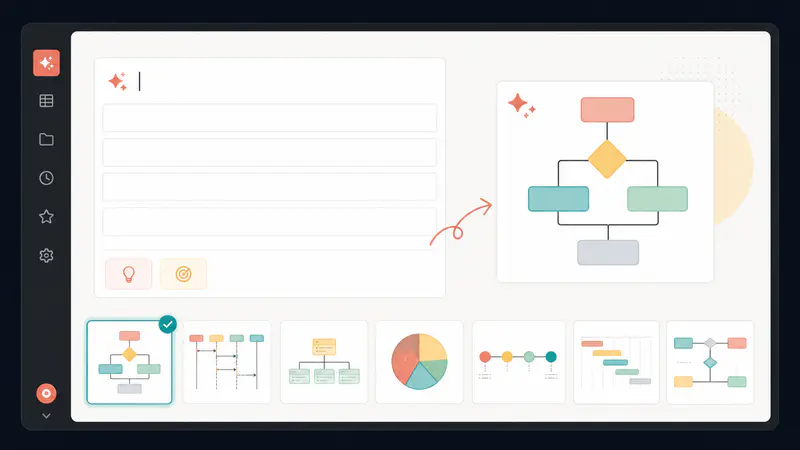
Explain the process, system, timeline, relationship, or data you want to visualize. Select a specific diagram type, choose auto detect, or start with one of the image-backed examples.
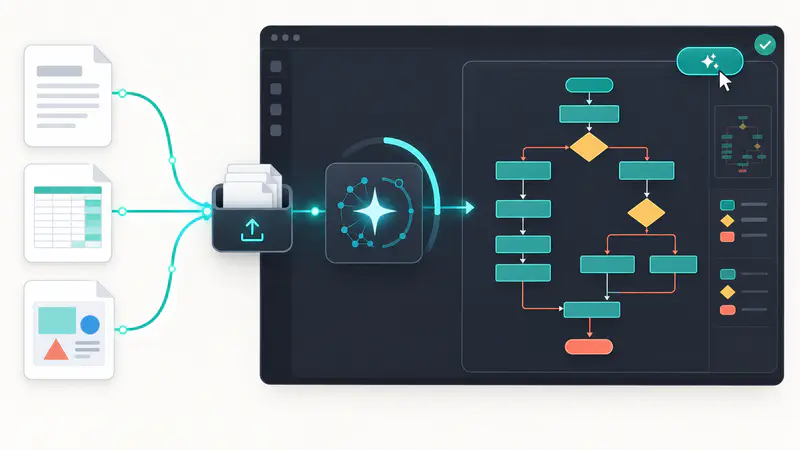
Optionally attach one Excel, Word, PDF, or PowerPoint file up to 25 MB. The AI uses your description and document context to produce Mermaid code, which is cleaned and validated before display.
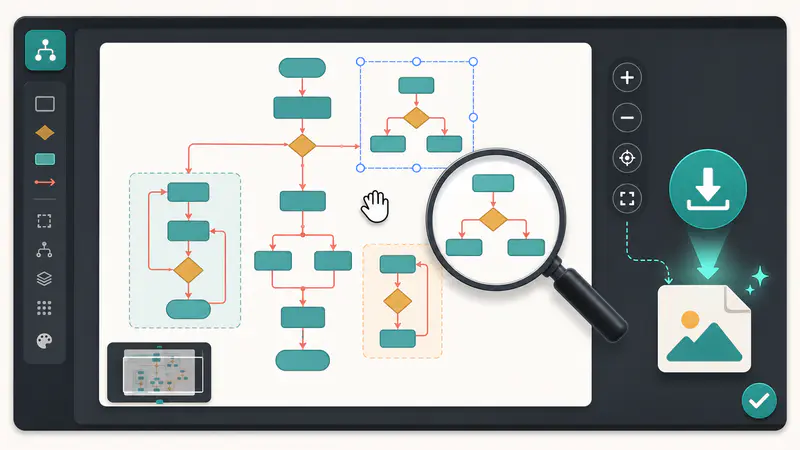
Zoom and drag through the rendered result, open it in a larger view, and download a high-resolution JPEG for presentations, documentation, planning boards, or team discussions.
Can't find the answer you're looking for? Contact our support team
It supports seven Mermaid formats: flowcharts, sequence diagrams, class diagrams, pie charts, journey diagrams, Gantt charts, and entity relationship diagrams. Auto detect can choose the format based on your description.
Auto detect analyzes the structure and intent of your description. Processes and decisions typically become flowcharts, time-based interactions become sequence diagrams, schedules become Gantt charts, and structured entities may become class or ER diagrams.
You can attach one .xlsx, .xls, .docx, .pdf, or .pptx file. The maximum file size is 25 MB. Uploading a file is optional, and a written prompt is still required so the generator knows what you want to visualize.
Each response is stripped of markdown wrappers, trimmed to the detected Mermaid declaration, parsed with Mermaid, and rendered before it is shown. If the model returns invalid syntax, the workflow requests a corrected result automatically.
Yes. The result workspace supports mouse-wheel or trackpad zoom and click-drag navigation. You can also open a larger lightbox view when a dense diagram needs more room.
Select Download JPEG after generation. The diagram is rendered again, placed on a white background, and exported at double scale for a clear image suitable for documents, slides, and sharing.
New users receive a free use to evaluate the generator. After that, each successful diagram uses one available monthly use or purchased credit according to the account's current plan and balance.
Keep exploring
Related Imgkits tools selected for the task you are working on.