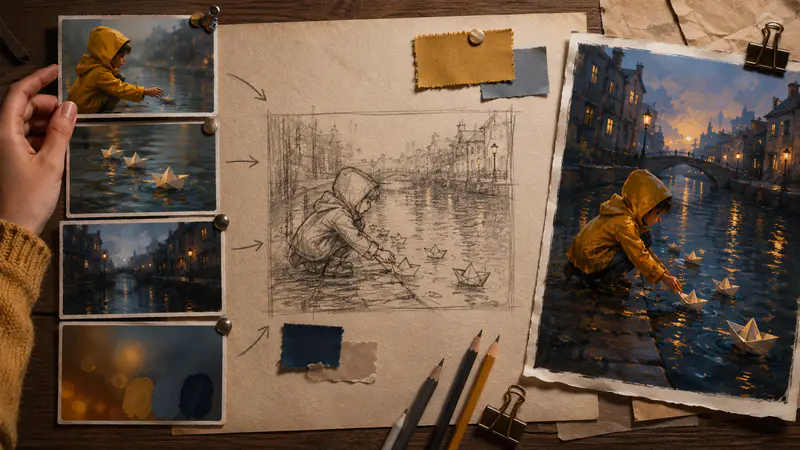
Describe the illustration
Enter the subject, action, setting and mood you want to see, or use an inspiration prompt as a starting point.
Describe your idea, choose an illustration style and aspect ratio, then generate polished artwork ready to download.
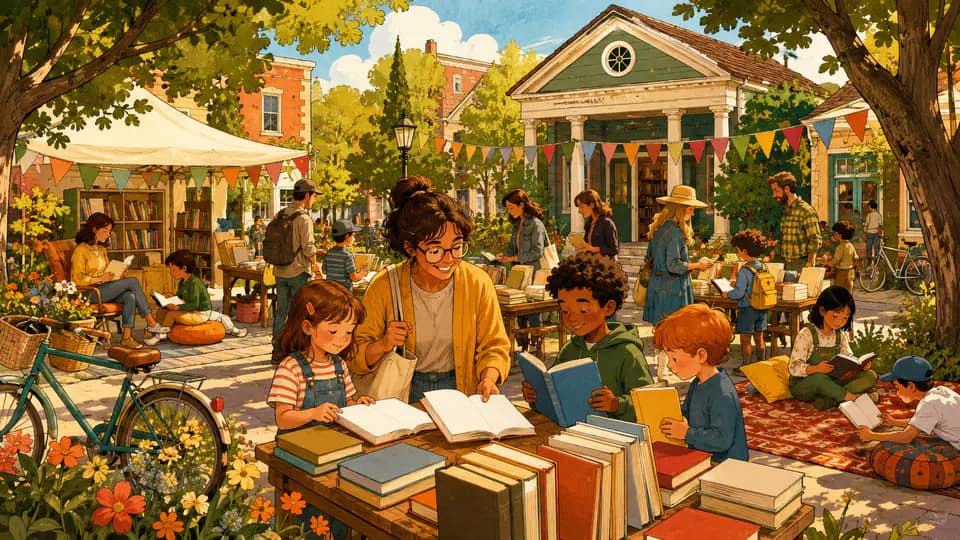
Move from a written concept to a downloadable illustration while keeping style and composition choices clear at every step.
Describe a subject, scene or character in your own words. The generator translates the brief when needed, reviews it for content safety and sends a structured prompt to the illustration model for a polished visual result.

Use image-backed previews to choose Color Doodle for playful energy, Line Art for crisp monochrome detail or Watercolor for soft pigment and texture. Each selection applies the matching art direction to the same creative idea.

Prepare square, portrait or landscape artwork without rewriting the prompt. Seven ratio choices cover social posts, story pages, presentation graphics, mobile backgrounds and wide compositions while preserving the selected illustration style.

Create visual directions for storytelling, communication and personal projects from one focused prompt.

Build character scenes, simple diagrams and narrative artwork that can support story drafts, classroom handouts or educational presentations.

Explore attention-grabbing artwork for social graphics, campaign mood boards and early creative concepts before moving into final layout work.

Generate custom scenes for invitations, journals, wall art ideas and thoughtful personal projects in a style that matches the intended mood.
Fictional examples based on common creative scenarios
I use the three style previews to test scenes for early story drafts. Seeing the same idea as a doodle, line drawing or watercolor makes art direction decisions much faster.

Sloane Mercer
Independent children's writer
The seven ratios help me move from a square social concept to a wide presentation visual without changing tools. The result gives my campaigns a clear starting point.

Dario Wynn
Freelance content strategist
Line Art is useful when I need a clean visual for a workshop worksheet, while Watercolor gives personal projects a softer finish. The workflow stays focused and predictable.

Imani Cross
Community workshop facilitator
Create a custom illustration in three direct steps, from the first description to the downloaded WebP file.
Enter the subject, action, setting and mood you want to see, or use an inspiration prompt as a starting point.
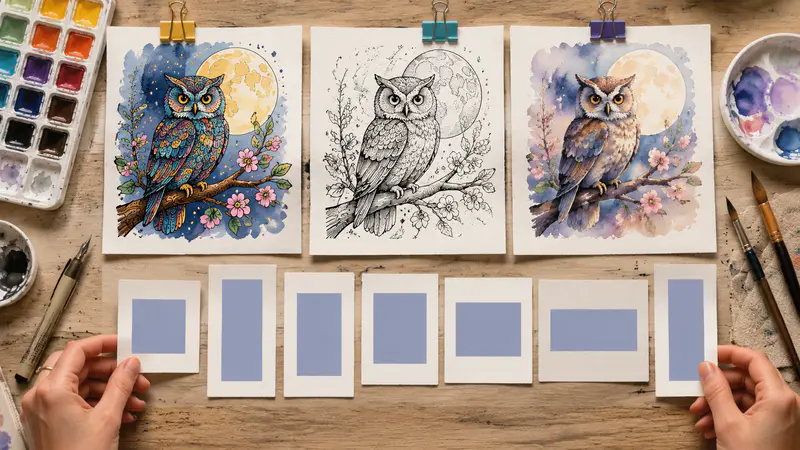
Select Color Doodle, Line Art or Watercolor, then choose one of seven square, portrait or landscape aspect ratios.
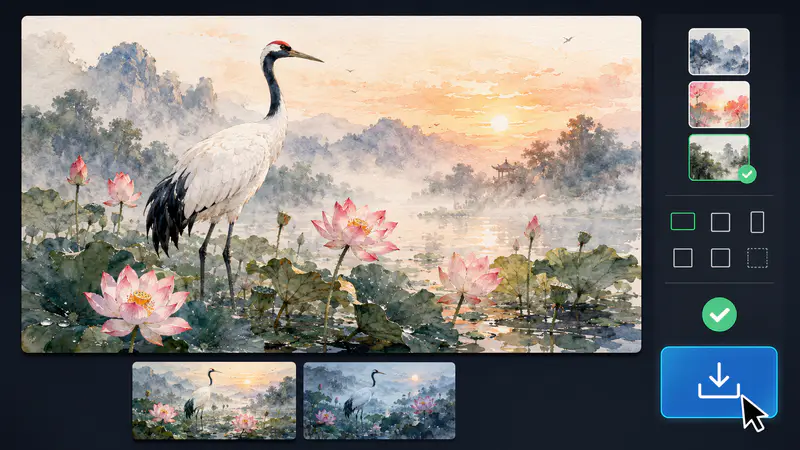
Start the generation, review the completed illustration in the result panel and download the WebP image to your device.
Can't find the answer you're looking for? Contact our support team
It creates a single custom illustration from your written description. Choose a visual style and aspect ratio before generation.
The model is designed to follow your subject, scene and mood. Clear, specific prompts usually provide stronger creative direction, but results can vary.
Three image-backed styles are available: Color Doodle, Line Art and Watercolor. Each style applies a distinct visual prompt to your description.
Seven aspect ratios are available for square, portrait and landscape artwork. Choose 1:1, 2:3, 3:2, 3:4, 4:3, 16:9 or 9:16.
Yes, you can cancel while the model is working and download a successful result as a WebP image. A cancelled task is also sent to the generation backend.
Keep exploring
Related Imgkits tools selected for the task you are working on.