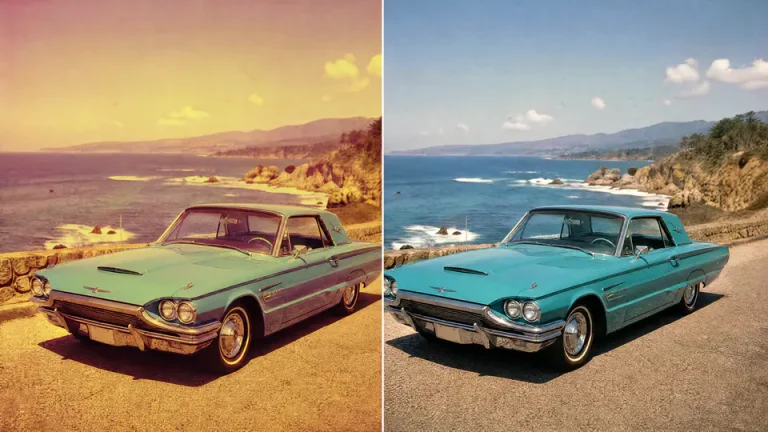
Color photos fade for a different reason than black-and-white photos. The dyes in old prints can break down over time, leaving the image with weak contrast, a magenta or blue cast, dull skin tones, and colors that no longer match the original scene.
Imgkits can help you start that repair online. Use photo restoration to recover an old or damaged image, then use the AI photo enhancer when the restored photo needs extra clarity, contrast, or detail.
Why Old Color Photos Fade
Color prints are sensitive to light, heat, moisture, storage materials, and age. Even when a print is not scratched or torn, it can lose the balance between reds, greens, blues, and skin tones. That is why many old color photos look too warm, too purple, too blue, or simply washed out.
- Sun exposure: reduces color strength and contrast.
- Aging dyes: shift the overall color balance over time.
- Scanning issues: add unwanted white borders, glare, or uneven tone.
- Paper damage: creates stains, cracks, or faded patches.
How to Restore Color in an Old Photo
- Scan or photograph the old photo as clearly as possible.
- Open the Imgkits photo restoration tool.
- Upload the faded color image.
- Let the tool repair visible damage and improve the overall image.
- Check faces, clothing, sky, shadows, and background areas for natural color.
- Use the AI photo enhancer if the restored image still needs more clarity.
What to Check After Color Restoration
Skin Tones
Faces are the first thing most people notice. If skin looks too red, too gray, or too saturated, the restoration may need a lighter touch.
Neutral Areas
White clothing, paper borders, walls, and gray objects can reveal a color cast. If neutral areas look purple, green, or blue, review the result before sharing.
Fine Details
Enhancement should help details look clearer, but it should not turn old prints into overly sharp or artificial images. Keep some natural photo texture when possible.
Photo Restoration vs Photo Enhancement
| Task | Use When | Recommended Tool |
|---|---|---|
| Restore color and reduce damage | The photo is faded, stained, scratched, or aged. | Photo restoration |
| Improve clarity and detail | The photo is mostly repaired but still soft or low contrast. | AI photo enhancer |
| Prepare for printing or sharing | The restored photo needs a final quality check. | Restoration plus light enhancement |
Tips for Natural Color Restoration
- Keep the original scan so you can compare before and after.
- Avoid pushing saturation too far.
- Review faces before judging the whole image.
- Use enhancement after restoration, not before, when the photo has damage.
- Save a high-quality copy before resizing for social media.
FAQ
Can AI restore faded color photos?
AI can often improve faded color, contrast, and visible damage. The best results come from a clear scan or sharp photo of the original print.
Should every old color photo be sharpened?
No. Enhancement is useful when the image is soft, but too much sharpening can make old prints look unnatural. Use it only when it improves the photo.
Can black-and-white photos be colorized this way?
This workflow is mainly for restoring faded color photos. Black-and-white colorization is a separate task and should be reviewed carefully for accuracy.
Final Thoughts
Accurate color restoration is about balance. Repair the fading, reduce color casts, keep faces natural, and enhance only enough to make the old photo clear without losing its original character.