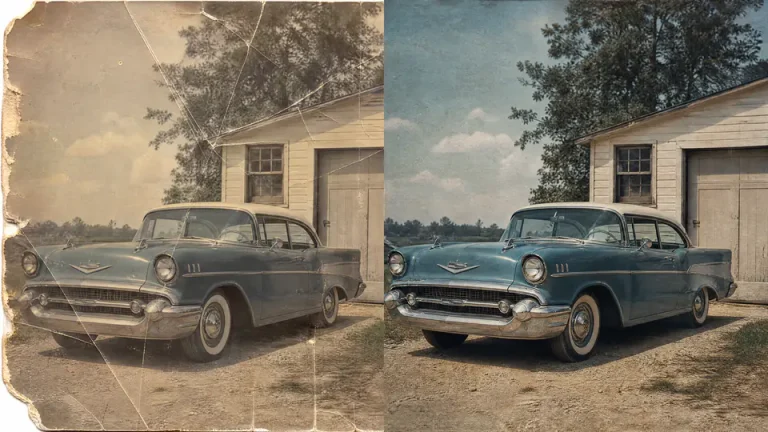
Old printed photos often carry the marks of time: scratches, dust, folds, stains, faded contrast, and missing details. Some damage needs careful manual retouching, but many everyday restoration tasks can now start with an AI workflow before you decide whether a photo needs more detailed repair.
Imgkits offers a simple photo restoration workflow for old and damaged images. If the photo is mostly intact but looks soft, faded, or low quality, the AI photo enhancer can also help improve clarity before sharing or printing.
Common Types of Old Photo Damage
- Scratches and cracks: thin white or dark lines caused by age, folding, or handling.
- Dust and spots: small marks from scanning, storage, or surface debris.
- Faded contrast: low detail caused by sun exposure, old paper, or poor scanning.
- Tears and missing areas: larger damage that may need careful reconstruction.
- Blur and softness: low sharpness from the original camera, print, or scan.
Start With the Best Scan You Can Get
Restoration quality depends heavily on the source image. Before editing, scan or photograph the old photo as clearly as possible. Keep the image flat, avoid glare, and use the highest practical resolution. A cleaner scan gives AI more information to work with.
Quick Preparation Checklist
- Wipe dust gently from the print if it is safe to do so.
- Scan at a high resolution or use a sharp phone photo with even lighting.
- Crop out empty borders only after the main restoration if possible.
- Keep an untouched copy of the original file.
How to Restore an Old Photo Online
- Open the Imgkits photo restoration tool.
- Upload the scanned or photographed old image.
- Let the tool repair visible damage and improve the photo.
- Review important faces, clothing, and background details.
- Use the AI photo enhancer if the restored photo still needs more clarity.
- Download the restored version and keep the original file archived.
When AI Restoration Is Enough
AI restoration is often enough when the photo has light scratches, small spots, moderate fading, or general softness. These edits can make a family photo easier to view, share, and archive without spending hours on manual clone-stamp work.
When Manual Retouching May Still Be Needed
Very large tears, missing faces, complex patterns, or important historical images may still need human judgment. AI can provide a cleaner starting point, but you should review the final image carefully before printing, publishing, or using it in family archives.
| Photo Issue | Recommended First Step | Extra Review Needed? |
|---|---|---|
| Dust, small spots, light scratches | Photo restoration | Low |
| Faded contrast or soft details | Photo restoration, then AI photo enhancer | Medium |
| Large tears or missing areas | Photo restoration as a starting point | High |
| Important archival photos | Restore a copy and compare with original | High |
How to Keep Restored Photos Looking Natural
- Do not over-sharpen faces until they look artificial.
- Compare the restored version with the original before sharing.
- Preserve natural grain when the photo is very old.
- Use enhancement lightly if the restoration already looks clear.
- Keep the original scan in case you want to try a different restoration later.
FAQ
Can AI repair scratches on old photos?
AI can often reduce or remove light scratches, small cracks, dust, and surface marks. Severe damage may still require manual review after the first restoration pass.
Should I restore or enhance first?
Start with restoration when the photo has visible damage. Use enhancement afterward if the restored photo still looks soft, faded, or low contrast.
Can I restore a photo from a phone picture?
Yes, but the result depends on image quality. Use even lighting, avoid glare, and keep the photo as flat and sharp as possible.
Final Thoughts
Restoring an old photo is partly technical and partly careful judgment. Use AI restoration to clean the most visible damage, review the result closely, and apply enhancement only when it helps the photo look clearer without losing its original character.