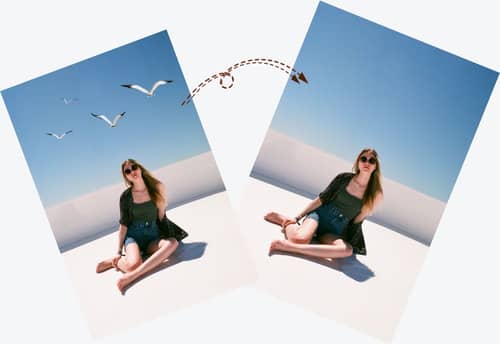
AI Image Inpainting Online
Mark an area and let AI rebuild it
Drag and drop to upload images
upload your image
No image? Try one of these:


* Upload only images you have permission to use
By uploading an image or URL, you agree to our Terms of Service. To learn how we handle personal data, read our Privacy Policy
AI Inpainting for Selected-Area Photo Repair
Use a visual mask to tell the model exactly which part of the photo should be reconstructed.
Remove Distractions with a Mask
Brush over an unwanted person, object, mark, or small imperfection. The inpainting model processes the selected area using visual context from the surrounding image.


Retouch Small Imperfections
Select scratches, spots, or distracting details instead of applying an edit to the entire photo. Results vary with the size of the mask and the visual complexity around it.
A Focused Image Inpainting Workflow
for Targeted Repairs
Work on a selected part of the uploaded image without applying a broad edit to the whole canvas.

Mask-Based Control
The brush shows the model where to work, so the edit stays focused on the selected region.

Browser-Based Editing
Open the tool online and complete the selection and processing workflow without installing desktop software.

Useful for Everyday Cleanup
Repair small marks, remove visual distractions, or clean up parts of travel, portrait, product, and scanned photos.

Review Each Image Individually
The current workflow processes each uploaded image separately, helping you inspect the mask and result before moving to the next edit.
How to Inpaint an Image Online
Upload an image, mark the area that needs repair, and process the selection in the browser-based editor.
Open the Inpainting EditorUpload an Image
Choose the photo you want to repair or open one of the available examples.
Mask the Target Area
Use the brush or selection controls to cover only the object or damaged area you want the model to rebuild.
Process and Download
Run the inpainting edit, review the filled area, and download the result when it matches your needs.
AI Image Inpainting FAQ
Can't find the answer you're looking for? Contact our support team
AI image inpainting reconstructs a selected part of an image using visual context from the surrounding area. You create a mask, and the model generates replacement pixels inside that selection.
You can use it to remove unwanted objects or people, repair scratches and spots, and clean up other localized distractions in a photo.
Results vary by image. Smaller, precise masks and backgrounds with clear surrounding detail often work better than very large selections or complex overlapping subjects.
It is suitable for anyone who needs a focused photo repair workflow, including creators, sellers, marketers, photographers, and casual users.
The editor accepts common image files through its image upload control. JPG, PNG, and WebP are the recommended formats.
New accounts can use available trial credits. Continued usage depends on the credits or subscription options shown in your Imgkits account.
This page explains the broader inpainting technique. The AI Object Remover page is focused specifically on erasing unwanted people, objects, text, or clutter from photos.
No desktop installation is required. The upload, masking, processing, and download workflow runs through the Imgkits web editor.
Cover the full unwanted area while keeping the mask as close to its edges as practical. If a result is not useful, adjust the selection and try again.
No. The current editor processes each image individually.