AI Christmas Photo Filter
Transform Your Photos with AI Christmas Magic
Give your photo a Christmas look with Santa styling, a winter scene or warm tree lights. Choose a style, guide the edit and review your new holiday photo before downloading.
Style inspiration
Santa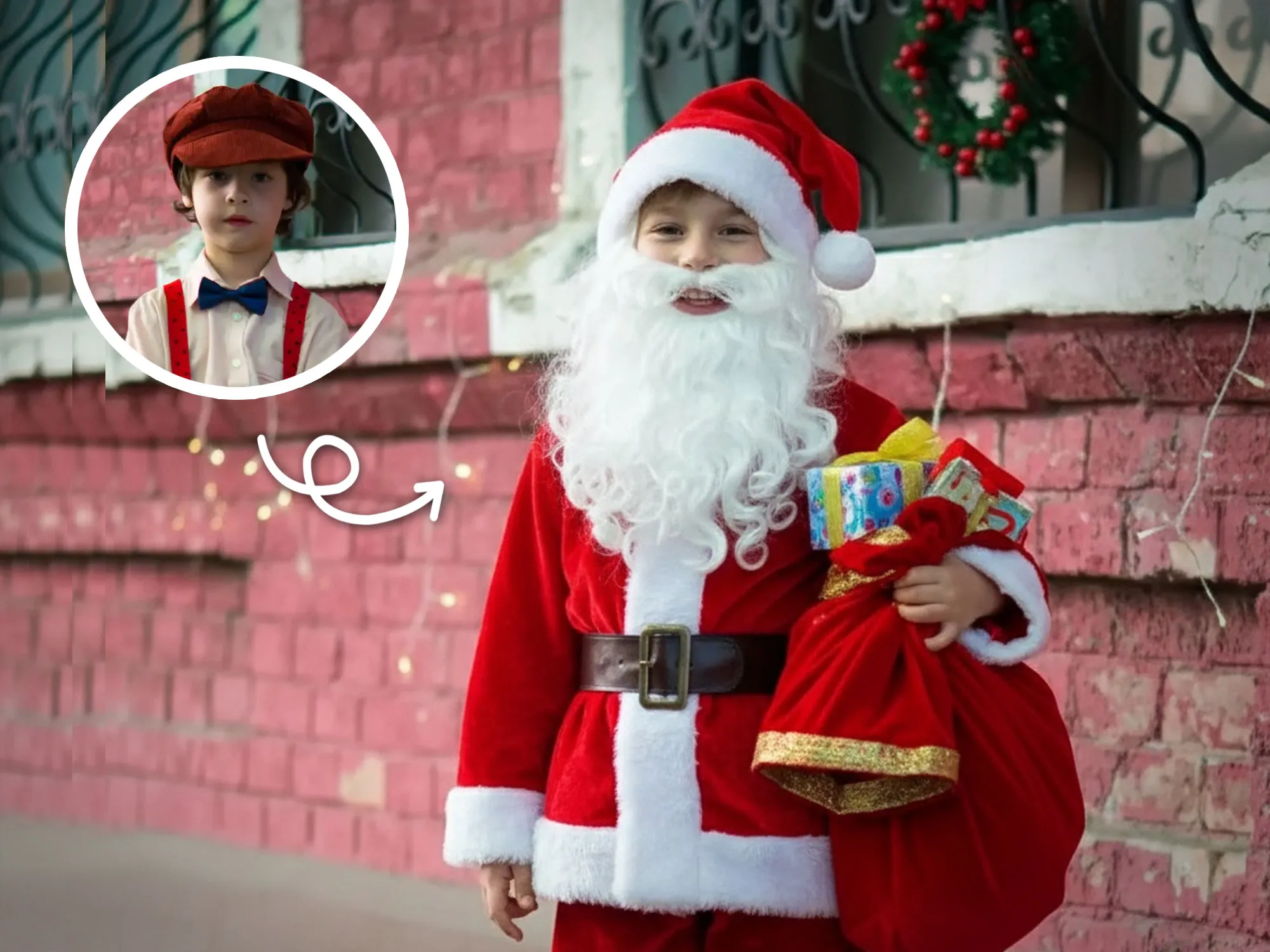
Explore Christmas photo styles
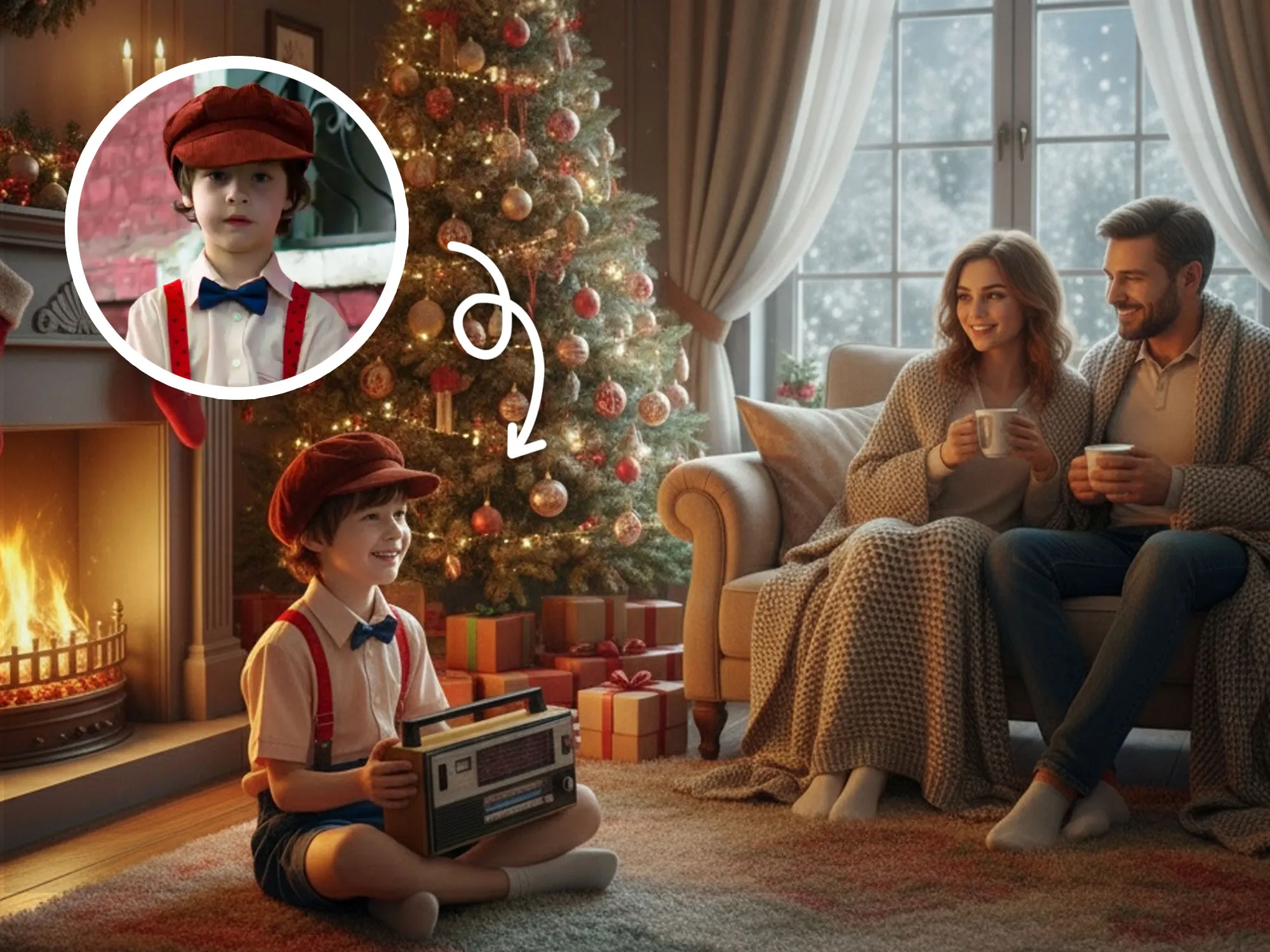
Choose a festive direction, from Santa clothing to a warm tree-lit scene. These illustrations show styles to explore, rather than verified results from this tool.
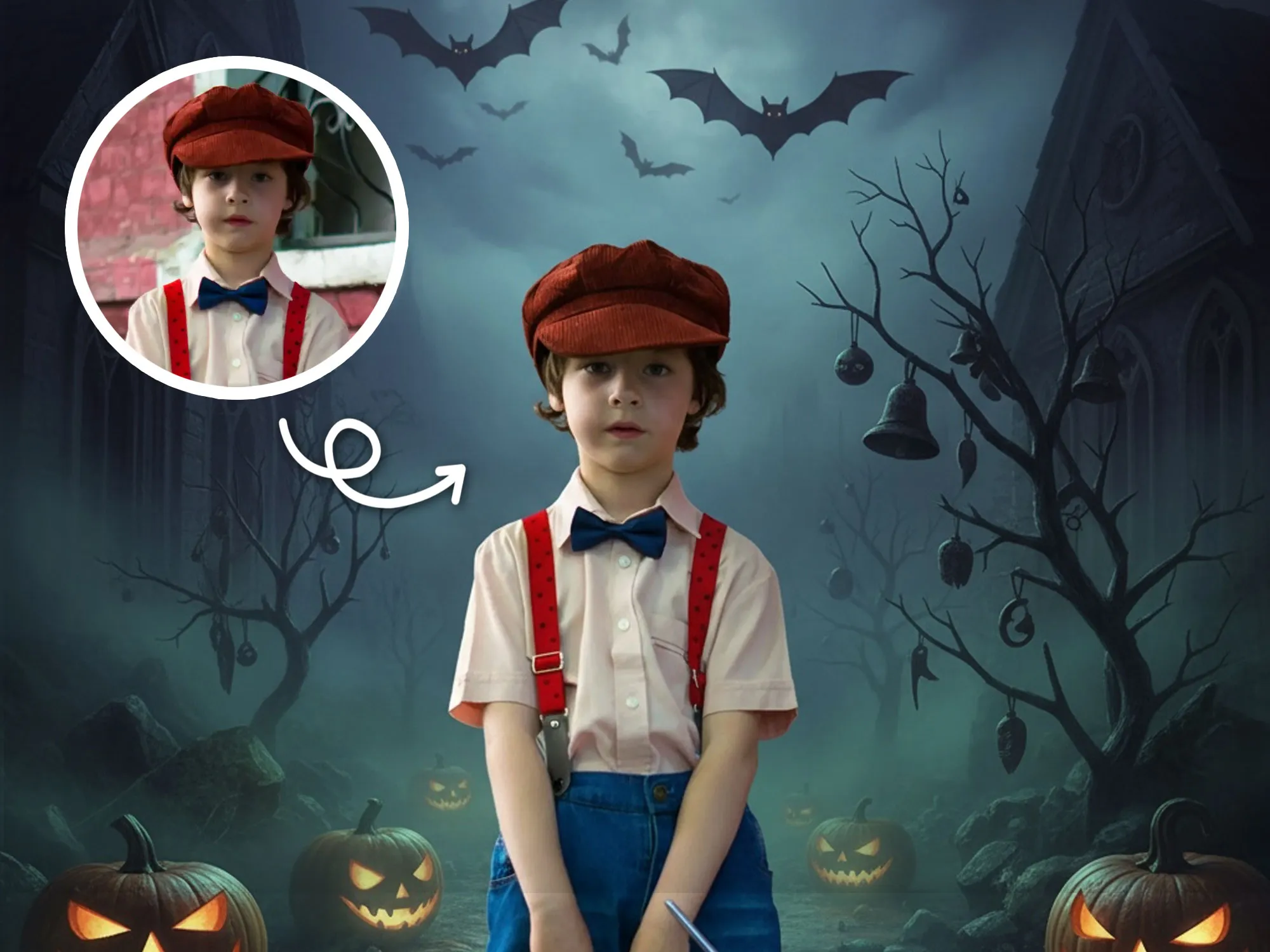
AI-created style inspiration. Illustrative images, not verified tool results.
Make your Christmas photo your own
Choose a festive look and guide the changes before reviewing the result.
Pick a festive starting point
Start with Santa, winter wonderland or spooky Christmas. A cozy option adds a warm tree-lit setting.
Add your own festive direction
Describe the outfit, setting or lighting you want. Choose a whole-scene edit or ask the model to focus on the subject.
Review and keep your result
Compare the image with your original, enlarge it and download it. Reuse a result as the input for another edit.

From your photo to a festive look
Bring a clear photo
Upload one JPG, PNG or WebP image up to 10 MB. A well-lit subject gives the model a clearer reference.
Choose and guide the look
Pick a style, choose the editing scope, and optionally describe the costume, setting or lighting you want.
Generate, review and download
Sign in and check the displayed usage requirement. Generate an image, review its details, and download the version you want.
Before you start
Which photos can I upload?
Upload one JPG, PNG or WebP image up to 10 MB. Use a clear, well-lit photo and only upload images you are allowed to edit.
Will my face stay exactly the same?
The prompt asks the model to retain recognizable facial features, but generative edits can change faces, clothing and small details. Review the image before using or sharing it.
Do I need to sign in or use credits?
Sign in to generate. The tool shows your usage requirement before submission. Generation is included for current subscribers; other accounts use the displayed credits. Failed generation is not charged as a successful task.
What if generation takes longer or I leave the page?
When a task ID is known, return with the same account and resume that task. Avoid submitting it again. A cancellation request may arrive after the task has already completed.