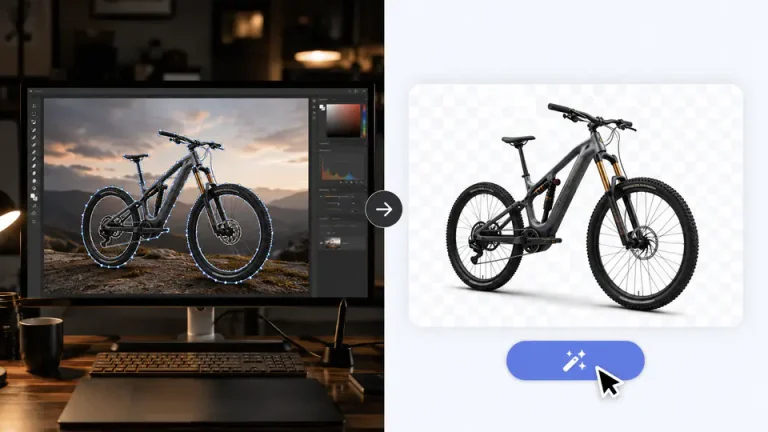
Photoshop can remove the background of a photo, but it is not always the fastest choice. If the subject has clean edges and the background is simple, Photoshop tools such as Select Subject, Quick Selection, and Background Eraser can work well. If the photo has hair, fabric, product handles, shadows, or a busy scene, manual cleanup often becomes slow.
For everyday product photos, profile images, thumbnails, and ecommerce assets, the faster workflow is to start with an AI tool. Imgkits offers a browser-based background remover that can isolate the main subject automatically, then you can keep the result transparent, place it on white, or move it into a new scene.
Photoshop Background Removal: When It Still Makes Sense
Photoshop is useful when you need pixel-level control. Designers may still prefer it for complex composites, print work, brand campaigns, or images that require manual retouching after the background is removed. The tradeoff is time: every extra edge correction, mask adjustment, and export step adds friction.
Use Photoshop When
- You need to refine a professional composite by hand.
- The image has very complex transparency, glass, smoke, or layered objects.
- You already have a Photoshop workflow and need detailed mask control.
- The final image must match a strict design file or print requirement.
Skip Photoshop When
- You only need a clean product cutout or white background.
- You are editing many store images and need consistent results quickly.
- You do not want to manage layers, masks, brush sizes, and exports.
- You need a transparent PNG for a website, marketplace, or social image.
How to Remove a Background With AI
- Open the Imgkits background remover.
- Upload the photo you want to edit.
- Wait for the tool to detect the subject and remove the original background.
- Choose a transparent result, a white background, or another simple color.
- Review the subject edges before downloading the final image.
This workflow is usually enough for ecommerce product photos, profile pictures, marketing thumbnails, school projects, and simple design assets. It also keeps the editing process accessible for people who do not use professional design software.
Photoshop vs AI Background Remover
| Workflow | Best For | Main Advantage | Main Limitation |
|---|---|---|---|
| Photoshop | Manual composites, print design, detailed retouching | Precise control over masks and layers | Slower and requires editing skills |
| AI background remover | Product photos, portraits, thumbnails, ecommerce images | Fast browser-based background cleanup | Very complex edges may still need manual review |
| AI background generator | Campaign scenes, social graphics, branded product visuals | Turns a cutout into a more styled image | Requires choosing a scene that fits the product |
Make the Result More Useful After Removing the Background
Keep It Transparent for Design Work
A transparent PNG is flexible. You can reuse it in website banners, comparison images, ads, and thumbnails without removing the background again.
Use White for Ecommerce Listings
A white background is often the safest option for product listings. It keeps the image clean and makes category pages easier to scan.
Create a New Scene for Marketing
After you remove the original background, you can use the AI background generator to create a more polished scene for ads, landing pages, and social media. For simpler changes, the background changer can place the same subject on a new color or backdrop.
Tips for Cleaner Background Removal
- Use the sharpest source image available.
- Keep the full subject inside the frame before uploading.
- Avoid heavy blur around product edges.
- Review hair, fabric, handles, glass, and shadows before downloading.
- Use a consistent crop and background style across the same catalog.
FAQ
Is Photoshop better than an AI background remover?
Photoshop is better when you need detailed manual control. An AI background remover is better when you need a quick, clean result without building masks by hand.
Can I use Imgkits instead of Photoshop?
For common background removal tasks, yes. Imgkits is designed for fast browser-based edits such as product cutouts, portrait backgrounds, thumbnails, and white-background product images.
Do I still need to check the result?
Yes. AI can save time, but you should still review the edges before using the image publicly, especially for products with hair-like textures, glass, lace, or reflective surfaces.
Final Thoughts
Photoshop remains useful for advanced design work, but it is no longer the only practical way to remove a background. For most everyday photos, starting with Imgkits is faster: remove the background, choose transparent or white output, and only move into manual editing if the image really needs extra refinement.