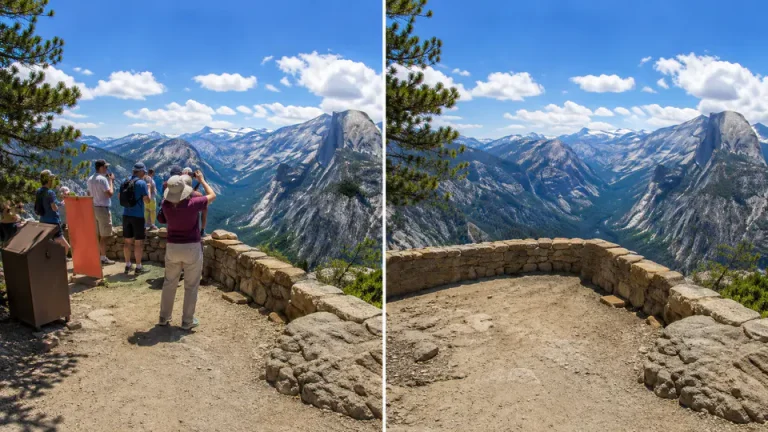
Travel photos often include people you did not intend to capture. A stranger may walk through a landmark shot, a crowded beach may distract from the view, or a passerby may appear behind the person you wanted to photograph.
Imgkits can help you remove tourists and other unwanted objects from a photo online. The best results come from marking the distraction carefully, reviewing the edited area, and using a second cleanup pass when the background is complex.
When It Makes Sense to Remove Tourists from a Photo
This kind of edit is useful for personal travel memories, property photos, social posts, ecommerce images, and creative cleanup. Only edit images you own, have permission to use, or are allowed to modify. Do not use object removal to misrepresent news, official records, evidence, or sensitive situations.
How to Remove Tourists or Other Unwanted Objects
For people in the background, start with the Imgkits remove people from photo tool. If the distraction is a bag, sign, wire, trash can, shadow, or another non-person object, use remove object from photo for the cleanup pass.
Step 1: Open the Imgkits Removal Tool
Choose the removal tool that matches the main distraction in your image. If a tourist is the main problem, use the people remover first. If the image contains several small objects, start with the general object remover.
Step 2: Upload the Photo
Upload the clearest version of your photo. Original files usually work better than screenshots because they keep more background detail for the AI to rebuild after the tourist or object is removed.
Step 3: Mark the Tourist or Object
Use the brush to cover the entire person or object. Include shadows, reflections, and connected items such as a backpack, bicycle, hat, or suitcase. Leaving part of the distraction unmarked can create visible leftovers in the final image.
For busy backgrounds, avoid selecting too much at once. It is usually better to remove one tourist or object, check the result, and then make a smaller second selection if needed.
Step 4: Process and Review the Result
After the AI removes the selected area, zoom in and check the background. Natural surfaces such as sky, sand, grass, water, walls, and pavement are usually easier to repair. Detailed areas like windows, signs, faces, fences, and patterned clothing may need an extra cleanup pass.
Step 5: Download the Clean Photo
When the edited area looks natural, download the final image. Keep the original photo as a backup so you can compare the before-and-after result or restart the edit with a smaller selection.
Tips for Cleaner Object Removal
- Use the original image whenever possible instead of a compressed screenshot.
- Mark the whole person or object, including shadows and reflections.
- Remove one distraction at a time in crowded photos.
- Zoom in around edges before downloading.
- Use a second pass for small leftovers instead of making one oversized selection.
Remove People vs Remove Objects
Use the people remover when the distraction is a person, tourist, passerby, or group. Use the general object remover for signs, trash cans, wires, bags, poles, small marks, and leftover details after the first edit.
For travel photos, the two tools work well together: remove the person first, then clean up smaller objects or shadows that remain near the edited area.
FAQ
Can Imgkits remove tourists from crowded photos?
Yes, but crowded images often need several smaller edits. Remove one tourist or one section at a time and review the background before continuing.
Will object removal change the rest of my photo?
The edit is focused on the area you mark. A careful selection helps keep the rest of the photo unchanged while the selected distraction is rebuilt.
What should I do if the background looks uneven?
Run a smaller second cleanup pass over the uneven area. This is often better than selecting a large area again.
Can I remove both people and objects from one photo?
Yes. Start with the largest distraction, then remove smaller objects or leftover marks with additional passes.